Sublimation on Canvas: Best DIY Guide For Crafters
Written by Mokua Brian
|
Published on
|
Modified on
|
Reading time for 7 min
Table of Contents
Canvas is a crafter's favorite material for expressing creativity and personal style, and sublimation is one of the best ways to create vibrant, durable designs on it. If you've been asking "Can you sublimate on canvas?" or "How do you sublimate on canvas at home?" — this guide has you covered.
We'll walk through everything you need — materials, step-by-step instructions, cotton canvas techniques, troubleshooting, and pro tips — whether you're a beginner or a seasoned crafter.
Can You Sublimate on Canvas?
Yes — canvas can be sublimated on, but only when it's polyester-based or treated with a sublimation coating.
Sublimation works on canvas because the material is typically made from cotton or polyester — but the method differs depending on which type you're using. Polyester canvas works directly with sublimation ink, while cotton canvas requires an HTV base layer. Pre-coated sublimation canvases make the process easiest for beginners. Learn more about sublimation printing.
Materials You're Going to Need
Gather these essentials before starting — a sublimation printer, the right canvas type, a heat press, and protective supplies are the core requirements.
A sublimation printer — Such as Epson, loaded with sublimation ink and compatible with your sublimation paper.
Canvas — 100% polyester recommended. Choose pre-coated sublimation canvas (easiest) or uncoated canvas with sublimation coating spray.
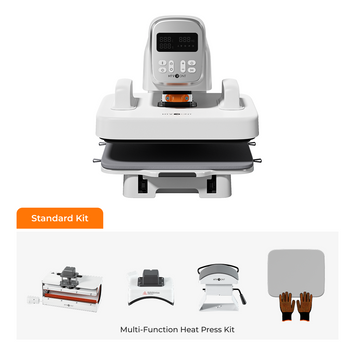
Heat press machine — Such as HTVRONT Auto 2 for consistent heat and pressure.
Heat protective sheet — Parchment paper or Teflon sheet.
Lint roller — To remove dust and lint from the canvas.
Protective gear — Mask to prevent inhaling fumes and gloves for heat protection during heat pressing.
Crafting knife or scissors — To trim sublimation paper.
Follow these five photo-illustrated steps to print, prepare, position, press, and finish your canvas sublimation project.
Step 1: Create & Print Your Designs
Create your design in software like Adobe Illustrator, Photoshop, Canva, or HTVRONT IdeaStudio. Mirror your design so text and directional elements transfer correctly. Load sublimation paper with the printable side facing up and print.
Do a test print on regular paper to confirm the mirror is correct. Once printed, let the sublimation paper rest for 1–2 minutes in the printer tray so the ink dries completely.
Step 2: Prepare the Canvas
For pre-coated sublimation canvas, use a lint roller to remove dust and lint — a clean, smooth surface ensures perfect transfers.
For uncoated sublimation canvas, lay it flat and spray evenly with sublimation coating from 5–8 inches away using overlapping strokes. Let it dry completely for 40–60 minutes. Apply a second coat for more vivid results.
Tip: As a beginner, go for pre-coated sublimation canvas to make the process much easier.
Step 3: Position Your Designs
Trim the sublimation paper slightly larger than your design. Place it printed-side down on the canvas and secure the edges with heat-resistant tape to prevent movement during pressing.
Step 4: Apply the Designs
Set your heat press to 375°F–400°F (190°C–204°C) with 60–90 seconds pressing time and medium to firm pressure.
Place parchment paper or a Teflon sheet on the heat press plate to prevent ink staining. Position the canvas with the attached sublimation paper on the plate, cover with another protective sheet, and press with consistent pressure.
Note: With the HTVRONT Auto 2 heat press, pressure is automated — just set temperature and time, then press.
Step 5: Final Touches
After pressing, cut the heat-resistant tape with scissors. Carefully peel the sublimation paper while still warm (hot peel). Let the canvas cool on a flat surface to prevent warping. Your sublimated canvas is complete!
✓ Canvas Sublimation Quick Checklist
□ Mirror the design before printing
□ Use high-resolution artwork (300 DPI minimum)
□ Print on sublimation paper with correct ICC profile
□ Let the paper dry 1–2 minutes after printing
□ Clean the canvas with a lint roller
□ Apply coating spray if using uncoated canvas (dry 40–60 min)
□ Secure the paper with heat-resistant tape
□ Press at 375–400°F for 60–90 seconds
□ Use hot peel while the paper is still warm
□ Cool the canvas flat to prevent warping
Can I Sublimate Designs on Cotton Canvas?
Yes — cotton canvas can be sublimated using an HTV base layer that bonds with the natural fibers first.
Sublimating on 100% cotton canvas requires an extra step: Heat Transfer Vinyl (HTV) serves as the base layer for sublimation. Here's the process:
Create, mirror, and print your design on sublimation paper as usual.
Cut HTV to match the sublimation paper size using a vinyl cutter like Silhouette or LokLik iCrafter.
Clean the canvas with a lint roller and pre-press to remove moisture. Do the same for the HTV.
Press the HTV onto the canvas at 260°F–280°F (127°C–138°C) for 10–15 seconds.
Let it cool completely, then press the sublimation design onto the HTV layer.
Troubleshooting Common Sublimation on Canvas Issues
Here's how to diagnose and fix the most common canvas sublimation problems.
1. Faded or Blurry Prints
Problem: Design looks washed out or blurry. Cause: Insufficient heat/pressure, uneven coating, or low-resolution files. Solution: Increase temperature by 5–10°F and adjust pressure. Ensure coating is evenly applied and fully dry. Use 300 DPI resolution and the correct paper type.
2. Ghosting or Shadowed Designs
Problem: A blurry shadow appears next to the design. Cause: The paper shifted during pressing. Solution: Secure paper firmly with heat-resistant tape. Avoid moving or lifting the press during pressing. Use medium pressure to prevent movement.
3. Washed-Out or Dull Colors
Problem: Colors lack vibrancy after pressing. Cause: Wrong ICC profile, low temperature, or poor coating. Solution: Use the correct ICC profile for your printer and ink. Verify press time (60–90 seconds) and temperature (375–400°F). Ensure coating is evenly applied and fully dry.
4. Warping Canvas
Problem: Canvas bends or warps after pressing. Cause: High heat and unsecured canvas. Solution: Secure the canvas with heat-resistant tape. Cool flat after peeling. Use a pressing pillow for stretched canvases to provide even support.
5. Scorching or Yellowing
Problem: Designs appear scorched or yellowed. Cause: Excessive heat. Solution: Reduce temperature and pressing time slightly. Add another layer of parchment paper or Teflon sheet to distribute heat evenly.
6. Uneven Transfers
Problem: Some areas transfer well while others don't. Cause: Uneven pressure or dust particles. Solution: Adjust the heat press to the canvas thickness for even pressure. Clean the canvas thoroughly before pressing.
7. Designs Not Sticking
Problem: Design doesn't adhere to the canvas. Cause: Wrong canvas material or insufficient pressure/time. Solution: Use polyester canvas. Increase pressing time by 10–15 seconds if needed.
8. Bleeding Ink
Problem: Ink bleeds or smears. Cause: Moisture in canvas or paper, or excessive heat. Solution: Ensure both canvas and paper are completely dry. Store sublimation paper in a cool, dry place.
Tips & Precautions for Perfect Sublimation Transfers
Keep these best practices in mind to achieve consistently vibrant, durable canvas sublimations.
Do test prints — Test printer output and design on a small area first to verify material compatibility.
Choose the right canvas — Pre-coated polyester canvas gives the best results. Regular canvas requires careful coating application.
Use high-quality designs and materials — 300 DPI resolution, mirrored designs, and premium sublimation paper, ink, and canvas make a noticeable difference.
Prioritize safety — Wear gloves and a mask. Work in a well-ventilated area to avoid fume inhalation.
Seal or frame your canvases — Protect finished designs with a clear protective spray or frame them for longevity.
Frequently Asked Questions
Quick answers to the most common questions about sublimating on canvas.
Can I do sublimation on any canvas?
No. Sublimation works directly on polyester surfaces. For cotton canvas, you'll need an HTV base layer. For regular canvas, a sublimation coating spray is required to make the surface compatible.
Can I layer my sublimation designs?
Yes. For complex designs, work in layers — allowing the canvas to cool between presses prevents ghosting and ink bleeding. Use reduced temperature and pressure for the first layer, then increase for subsequent layers. Practice on scrap canvas first.
What is the best fabric for my sublimation project?
Sublimation ink works best on polyester materials. Cotton and other natural fibers require special techniques — like an HTV base layer — to achieve good results.
Can I use a household iron instead of a heat press when sublimating?
No. Household irons can't provide the consistent heat and pressure required for sublimation. Always use a proper heat press for reliable results.
Can I reuse my sublimation papers?
No. Sublimation papers are single-use only. Once the ink has been transferred, the paper can't be used again.
What temperature should I use for canvas sublimation?
Use 375°F–400°F (190°C–204°C) for 60–90 seconds with medium to firm pressure. For cotton canvas with HTV, press the HTV first at 260°F–280°F for 10–15 seconds before sublimating.
Conclusion
Sublimating on canvas is one of the easiest ways to create vibrant, professional-quality prints for art, home décor, or personalized gifts. With the right materials and the techniques in this guide, you can achieve consistent, stunning results. Practice patience, experiment often, and enjoy the rewarding process.
If you've sublimated on canvas before, share your experience with us — we'd love to hear about it. Share this guide with friends and family so they can create unique canvas designs too. Happy sublimating!
Ready to master more sublimation techniques? Our sublimation guide covers heat, pressure, and time settings for every substrate — so every transfer comes out vibrant and professional.


 Cart Unlocks Add-On Deals